

Mobile Progressive Web App (PWA)
Download HiringCenter on mobile phone
Why install
- Easy access from your home-screen icon and a full-screen app
- More reliable push notifications
- Device Handoff prompts when a text, email, or call is queued
- Incoming calls, texts, and meeting waiting-room alerts while you are on the go.
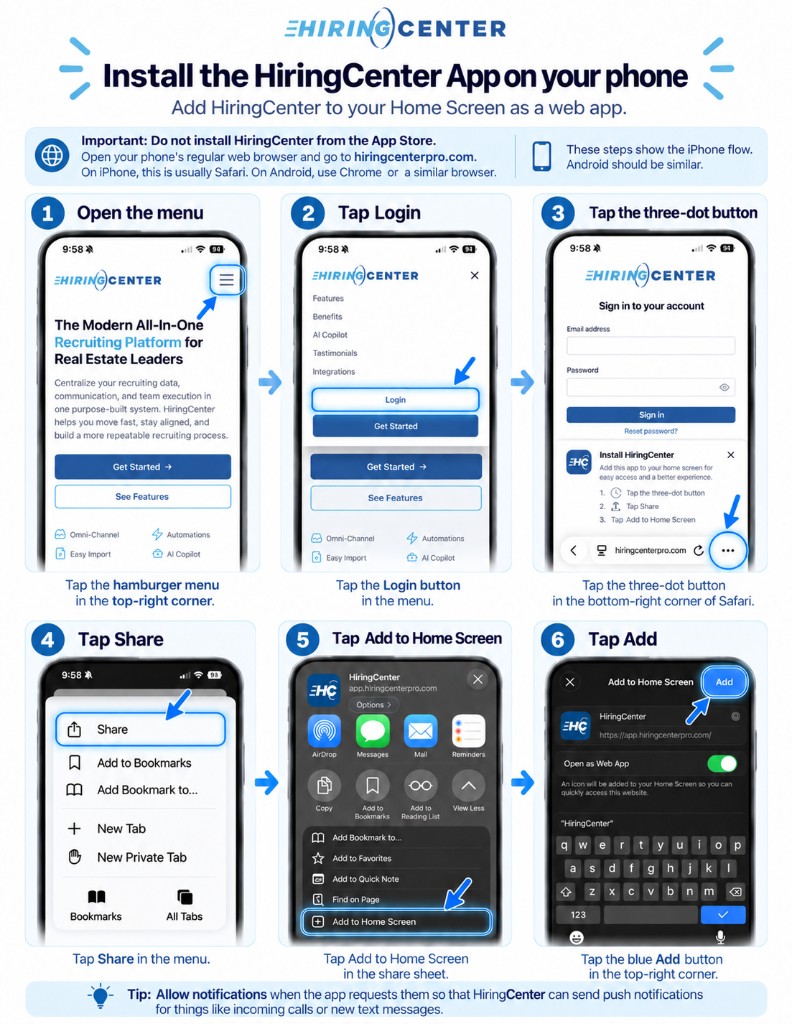
Add HiringCenter to your home screen. There is no separate App Store or Play Store listing for HiringCenter.
Use Safari on iPhone or Chrome on Android. Other browsers often cannot install a web app.
iPhone (Safari)
- Visit app.hiringcenterpro.com in Safari.
- Tap the three-dot menu.
- Tap the Share button (square with an arrow).
- Tap Add to Home Screen.
- Confirm the name and tap Add.
- Open HiringCenter from the home-screen icon and log in.
If you see the in-app Install HiringCenter banner, it walks the same path: three-dot menu → Share → Add to Home Screen.
Android (Chrome)
- Visit app.hiringcenterpro.com in Chrome.
- Tap the three-dot menu.
- Tap Install and create shortcut.
- Confirm.
- Open HiringCenter from the home-screen icon or app drawer and log in.
The in-app banner says Tap the three-dot menu → Tap Install and Create Shortcut.
After install
- Open the installed app from the home-screen and sign in.
- Allow notifications when asked. See Enabling push notifications.
- Visit Your Profile to configure push notification settings.
Tips
- If the app looks stuck on an old version, close it fully and reopen the home-screen icon.
Last modified on